Home Security
Home Router Firmware Update Plan: Safer Updates Without Losing the Network
A practical router firmware checklist for inventory, backups, update windows, rollback prep, and safer home-network habits.
- Use source-backed steps before changing security settings.
- Prioritize MFA, updates, backups, segmentation, and phishing-resistant habits.
- Save only the guides you need; no account is required.
Updated May 28, 2026. Router menus differ by vendor and ISP. This guide avoids model-specific button paths and focuses on a safe update process you can adapt. Do not reset business, medical, or monitored alarm equipment without confirming the support path first.
Most home networks fail quietly. The router sits in a closet for years, the admin password is forgotten, and firmware updates are skipped because nobody wants to break the internet. A safer plan turns the update into a controlled maintenance task instead of a panic click.
The update decision table
| Router state | Risk | Action |
|---|---|---|
| Auto-updates on, recent vendor support | Lower | Verify version quarterly |
| Manual updates available | Medium | Back up settings and schedule update |
| No updates for years | Higher | Plan replacement |
| Unknown admin password | Recovery risk | Find reset/reprovision steps before changing anything |
| ISP-managed router | Support dependency | Check ISP app/support instructions |
Step 1: inventory before you log in
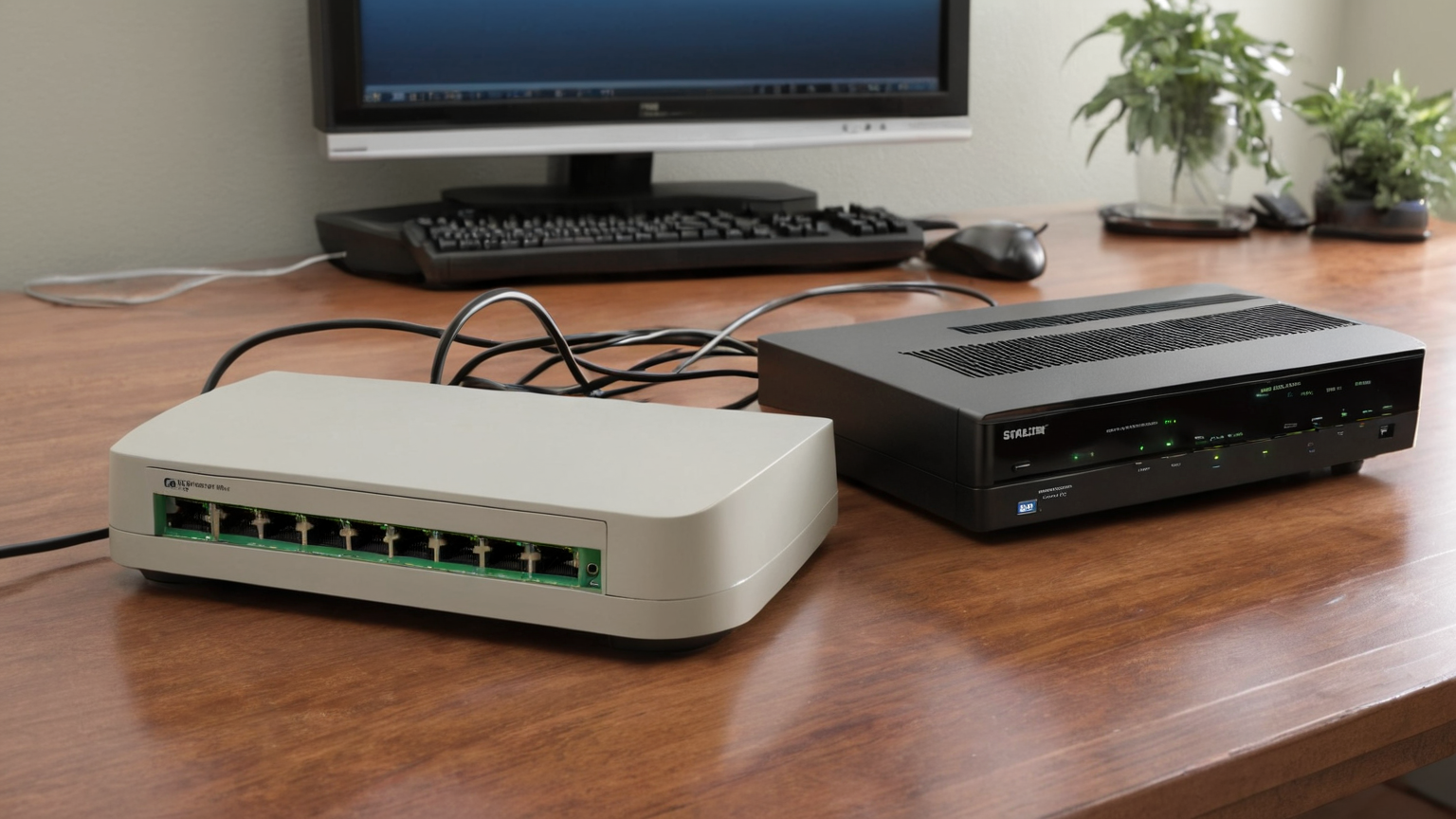
Write down the router model, ISP equipment status, admin URL or app, current firmware version, Wi-Fi network names, and any special settings: port forwards, static DHCP reservations, parental controls, guest network, DNS filtering, VPN, or smart-home hubs.
This is not bureaucracy. It is the rollback map. If the update wipes settings or the router needs a factory reset, the inventory tells you what must be restored and what can stay retired.
Step 2: secure the basics first
CISA and FTC consumer guidance consistently point to basic cyber hygiene: strong unique passwords, updates, phishing awareness, and safer account/device habits. For routers, translate that into:
- Change the router admin password if it is default or reused.
- Use WPA2-Personal or WPA3-Personal where supported; avoid obsolete encryption.
- Disable remote administration unless you deliberately need it.
- Keep a guest network for visitors and untrusted smart devices when practical.
- Remove unknown devices before assuming the firmware update solved everything.
Step 3: back up settings and choose a window
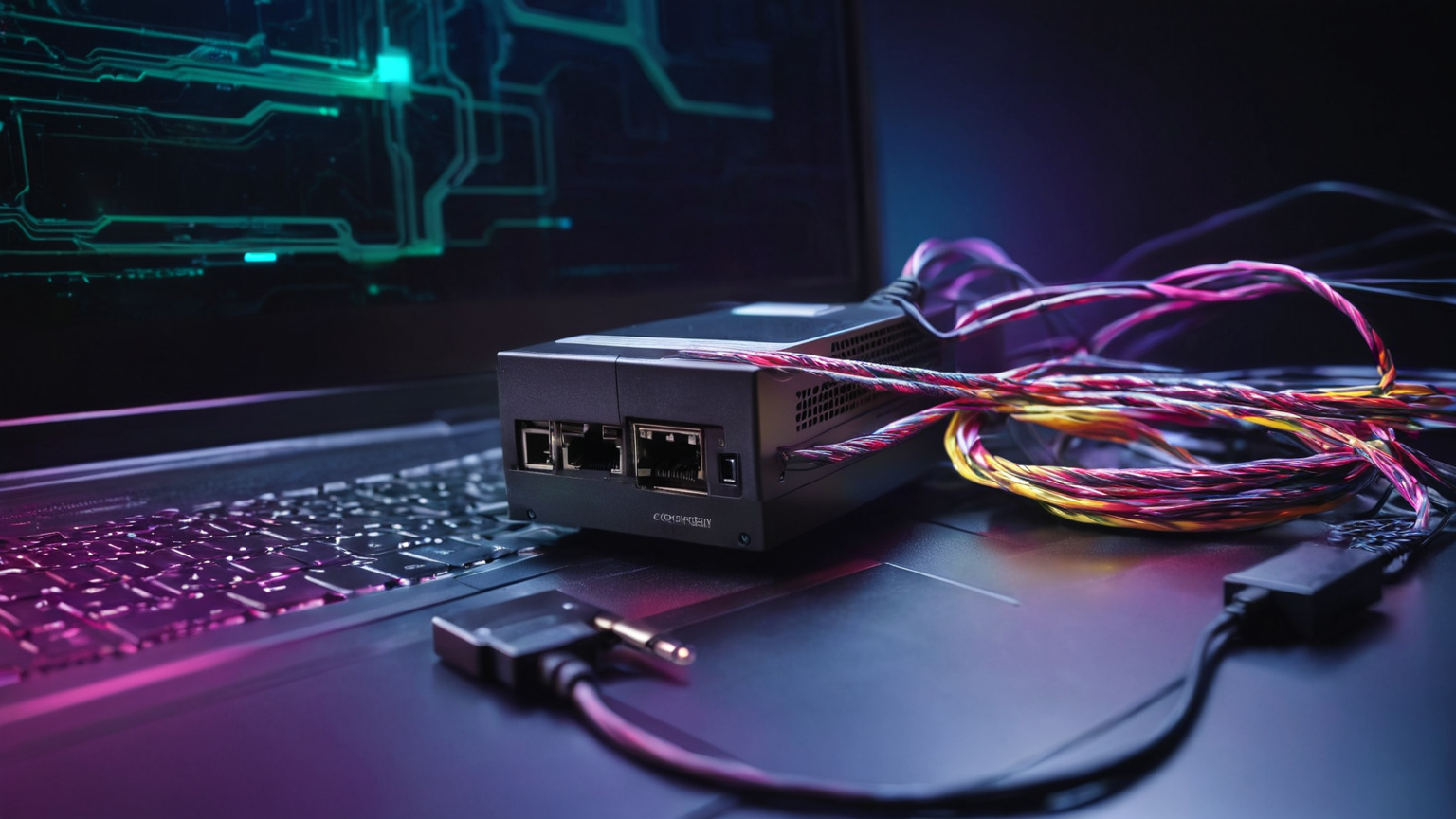
Look for a settings backup/export option in the router admin interface. Save it somewhere you can reach if Wi-Fi is down, such as a local folder on the laptop connected by Ethernet. If export is unavailable, take structured notes instead of screenshots full of secrets.
Pick a maintenance window when video calls, homework, security cameras, and streaming are not critical. If you work from home, do not update ten minutes before a client meeting. Have a phone hotspot available for instructions if the router does not come back quickly.
Step 4: update with fewer moving parts

Use the vendor app or admin page rather than a random download link. Keep power stable. Do not unplug the router during the update unless the vendor instructions explicitly say to. Expect reboots; many routers disappear for several minutes.
After the update, verify these items:
| Check | Why it matters |
|---|---|
| Firmware version changed | Confirms the update applied |
| Wi-Fi encryption still modern | Updates can reset compatibility options |
| Guest network still isolated | Smart-home devices should not gain unnecessary access |
| Port forwards unchanged | Unexpected exposure can appear after reset |
| Admin password still unique | Some resets restore defaults |
Step 5: prepare rollback without clinging to old firmware
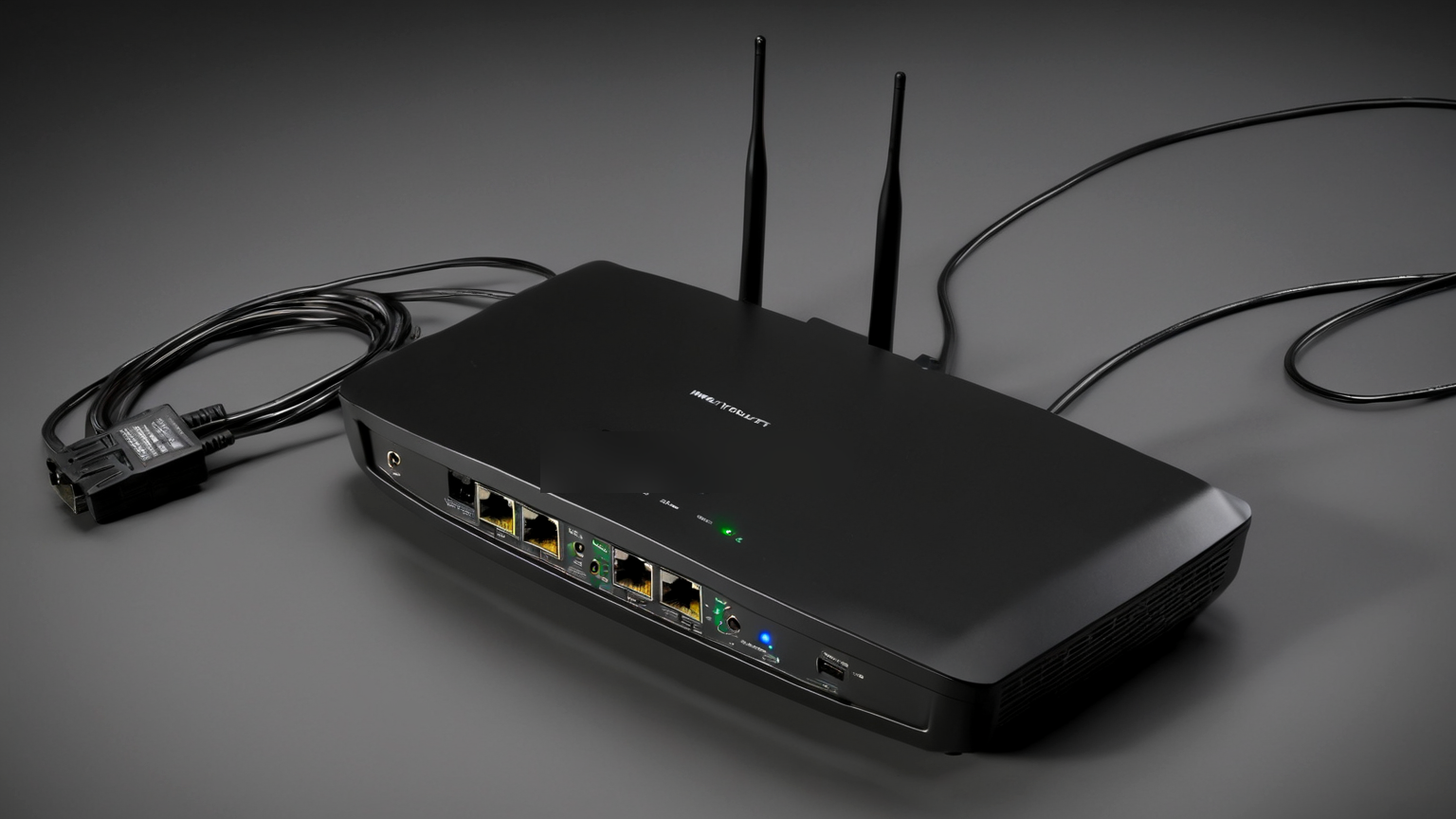
Rollback does not always mean reinstalling old firmware. Often it means restoring settings, rebooting modem and router in order, factory-resetting and reprovisioning, or replacing unsupported hardware. Old firmware may contain the very vulnerability you were trying to fix.
Keep the reset steps, ISP support number, and backup file handy. If the router repeatedly fails updates, overheats, drops devices, or no longer receives patches, replacement is a security control, not just a speed upgrade.
Monthly mini-check
- Confirm auto-update status.
- Review connected devices for unknown names.
- Remove old guest passwords after visitors or contractors.
- Check whether the vendor still publishes firmware for your model.
- Verify the admin password is stored in your password manager.
Bottom line
A router firmware update is safest when you treat it like a tiny maintenance change: inventory, backup, update, verify, and recover. The worst plan is ignoring updates for years because the recovery path is unknown.