Device Security
Home Printer Security Retirement and Reset Plan for 2026
A household security plan for retiring, donating, recycling, or resetting printers without leaking Wi-Fi details, address books, scan history, or stored documents.
- Use source-backed steps before changing security settings.
- Prioritize MFA, updates, backups, segmentation, and phishing-resistant habits.
- Save only the guides you need; no account is required.
Updated 2026-06-15. This is household cybersecurity guidance, not a substitute for an organization security policy. Work or client printers should be handled by the responsible IT/security owner. This article is written for helpful-content and AdSense readiness: current source links, practical decision support, privacy-aware records, and no affiliate filler.
Printer-retirement security decision table
| Printer state | Security action | What to avoid | Escalation |
|---|---|---|---|
| Still in daily use | Update firmware and admin password | Leaving default settings | Router or printer support docs |
| Being donated | Unlink accounts and reset | Sending with saved contacts | Manufacturer manual |
| Being recycled | Clear data and paper paths | Assuming recycle equals wipe | Recycler plus manual |
| Unknown business use | Ask asset owner first | Wiping required records alone | IT/security owner |
Printers are network devices, not just appliances
A printer can remember Wi-Fi networks, admin passwords, scan destinations, email settings, cloud accounts, address books, and job history. Treat retirement like any other connected-device handoff.
Identify what the model can store
Before donation, sale, recycling, or family hand-me-down use, look up the manufacturer reset steps, removable storage, account unlinking, and whether the device has a web admin page.
Printer data-removal note
- What changed today?
- Which source or policy should be checked before acting?
- Who owns the next step?
- What private information should stay out of shared notes?
Disconnect accounts before the factory reset
Remove cloud print services, scan-to-email accounts, address books, saved network profiles, and mobile-app pairings. Then perform the documented reset so old credentials are not left behind.

Handle paper and scans separately
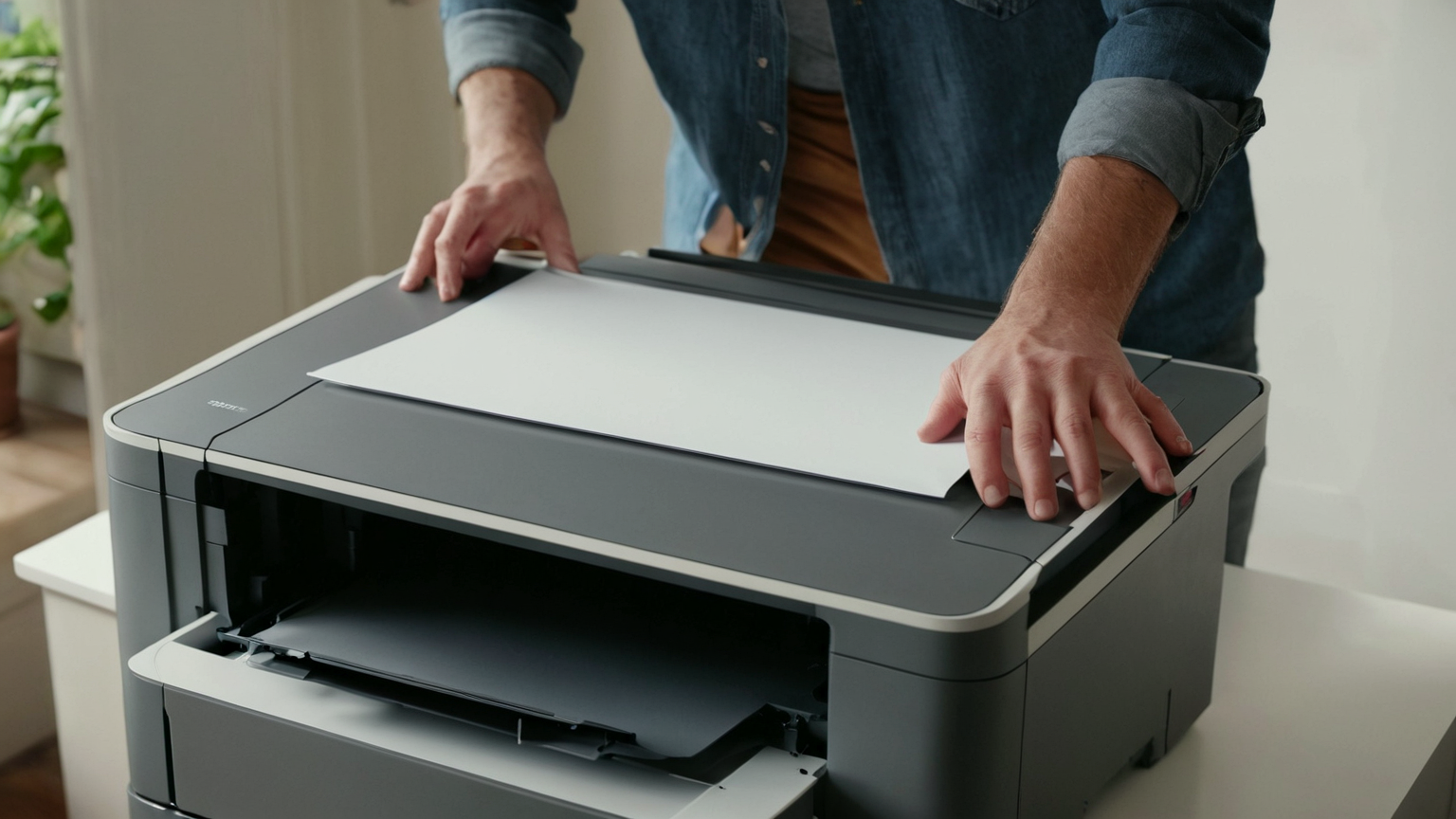
Clear input trays, output trays, scanner glass, automatic document feeders, and any saved scan destinations. A privacy leak can be a forgotten paper stack as easily as a memory setting.
Mistakes that leave printer data behind
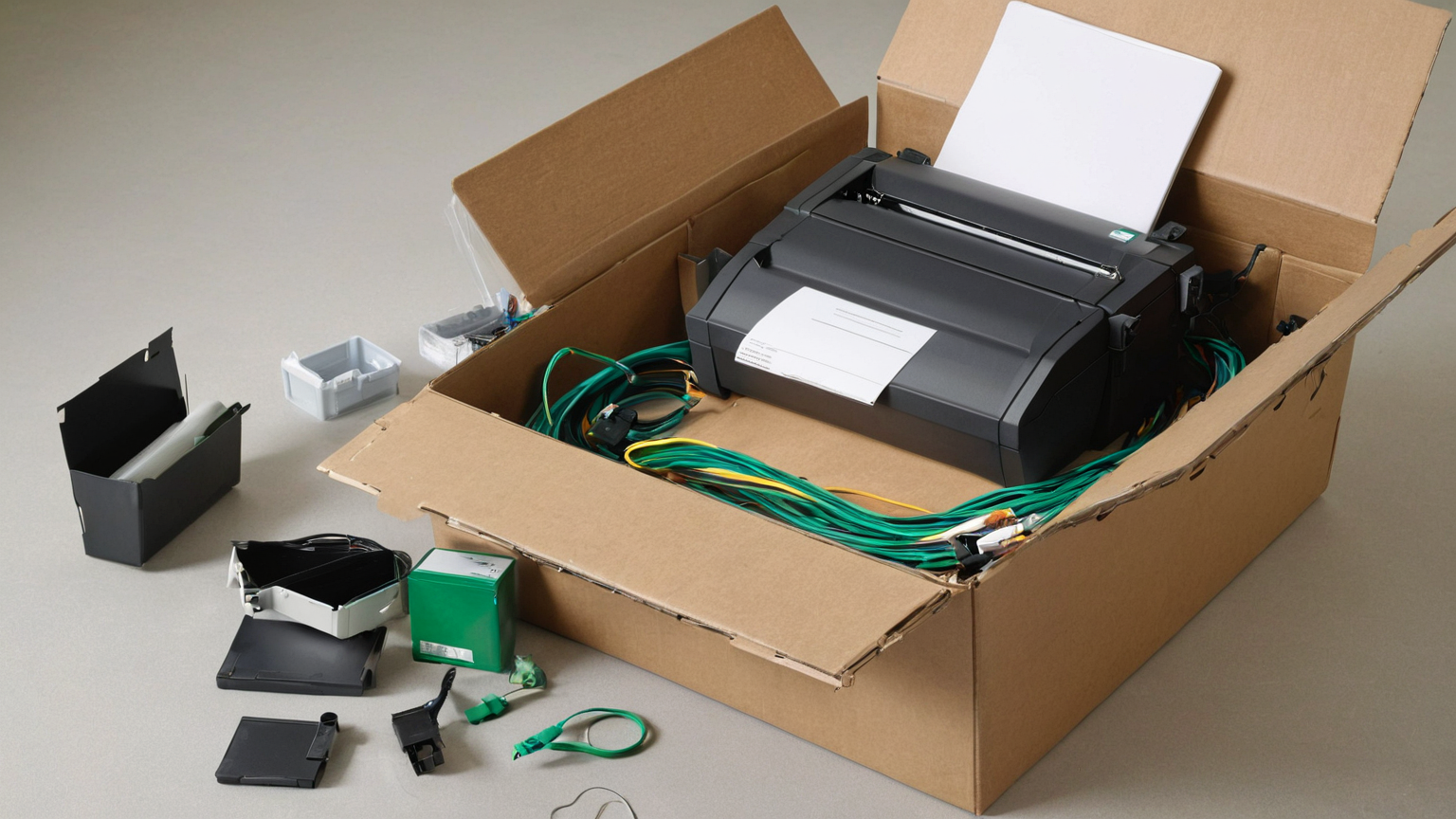
- Treating a printer like a passive appliance instead of a networked device with saved settings.
- Forgetting scan destinations, cloud-print connections, address books, or mobile-app pairings.
- Recycling or donating the printer before checking the manufacturer reset instructions.
- Leaving old Wi-Fi credentials or default admin settings on a printer that stays in the home.
Rejoin the network carefully if reused
If the printer stays in the home, use a strong admin password, firmware updates, a guest/IoT network where practical, and only the features the household actually needs.

Choose disposal with data and environment in mind
If the device is leaving your control and the manufacturer reset is unclear, remove storage only when the manual supports it, use reputable electronics recycling, and keep a brief disposal note.
Practical checklist
- Print or save the manufacturer reset instructions before disconnecting.
- Remove paper, scans, address books, and cloud links.
- Reset Wi-Fi and admin credentials from the printer.
- Delete the printer from computers and mobile apps.
- Use a reputable donation or recycling path.
Source note and trust boundary
The source list favors electronic-device disposal, media-sanitization, home-network, IoT, privacy, and recycling guidance. If the printer manufacturer manual, workplace IT/security owner, recycler requirements, or local e-waste program gives stricter steps for a specific model, follow that source and record the reset or disposal date.
FAQ
Do all printers store documents?
No. Storage varies by model, but many printers remember networks, email settings, address books, job history, scan destinations, or cloud-service connections.
Is a factory reset enough?
It may be enough for some home printers, but check the manufacturer manual for stored data, removable memory, and cloud-account unlinking.
Should the printer stay on the main Wi-Fi?
If it remains in service, consider a guest or IoT network when printing needs allow it, and keep firmware and admin settings reviewed.
AdSense-readiness note
This post preserves the site quality baseline by adding a specific user problem, original tables and checklists, clear escalation boundaries, privacy-safe wording, descriptive source titles, and internal links to related guides rather than repeating generic boilerplate.