Home Network Security
Home Router Firmware Security Plan: Update, Backup, Reset, and Replace Safely
A 2026 home-router security workflow for firmware updates, admin passwords, guest networks, backups, factory resets, and replacement decisions.
- Use source-backed steps before changing security settings.
- Prioritize MFA, updates, backups, segmentation, and phishing-resistant habits.
- Save only the guides you need; no account is required.
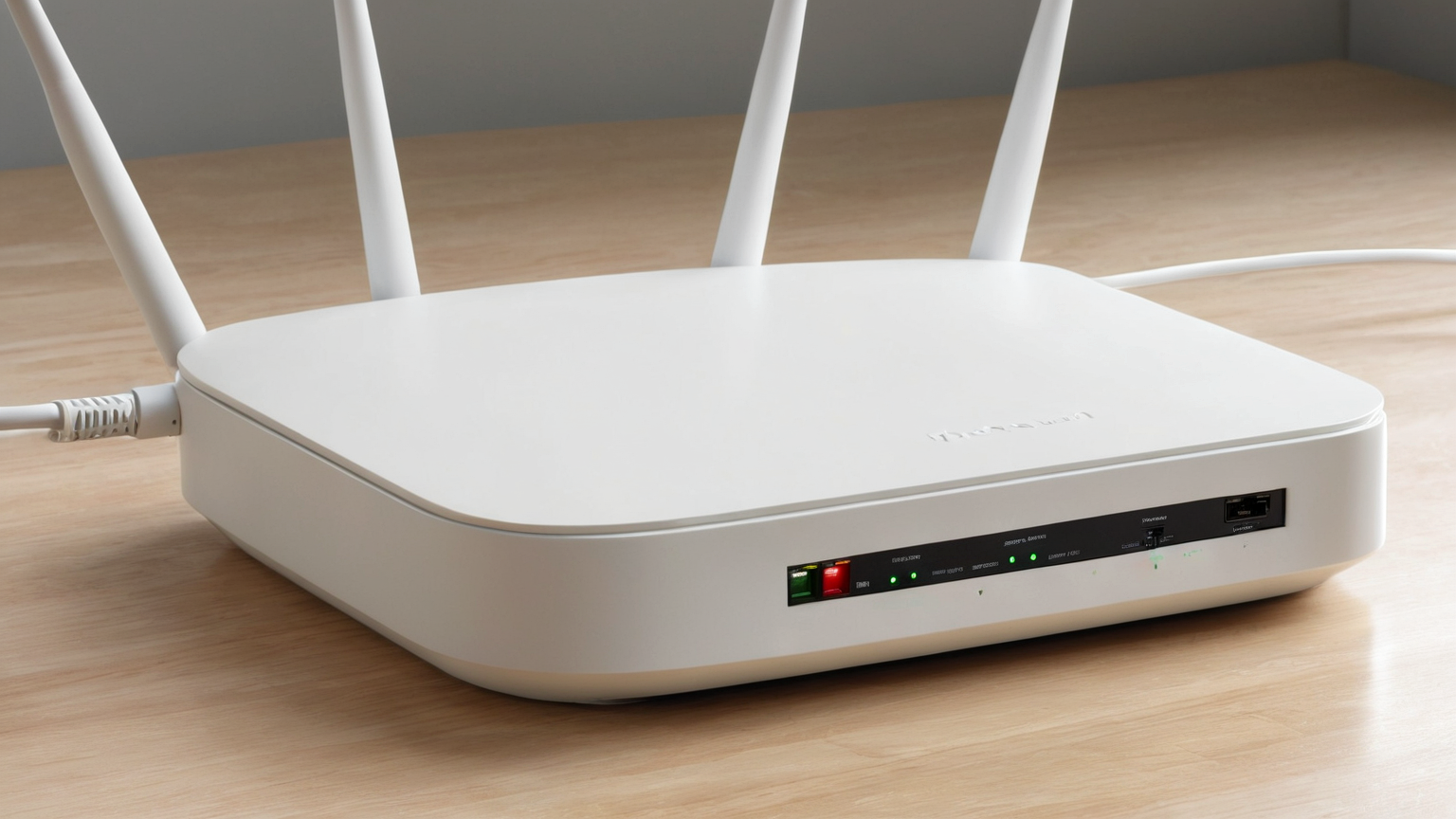
Updated June 1, 2026. A home router is both infrastructure and security equipment. In 2026, many households still treat it as a set-and-forget appliance even though it controls Wi-Fi, guest access, smart devices, remote administration, DNS settings, and firmware updates. This guide turns router maintenance into a safe sequence: identify, back up, update, verify, reset only when needed, and replace unsupported gear.
| Router state | First action | Escalate when |
|---|---|---|
| Updates available | Backup settings, update during quiet window | Update fails or router reboots repeatedly |
| Unknown admin password | Check ISP/vendor process | You suspect compromise or inherited equipment |
| Remote admin enabled | Disable unless required | It re-enables or cannot be controlled |
| Many smart devices | Use guest/IoT separation where practical | Devices need unsafe exceptions |
| Unsupported firmware | Plan replacement | No security updates or vendor support |
Inventory before changing settings
Photograph the cable layout without exposing passwords or serial numbers publicly, record the router model, firmware version, ISP equipment role, Wi-Fi names, guest network state, and devices that would break if the network changed. Do not begin with a factory reset unless compromise, unknown admin access, or failed configuration makes it necessary.
Update firmware with a rollback mindset
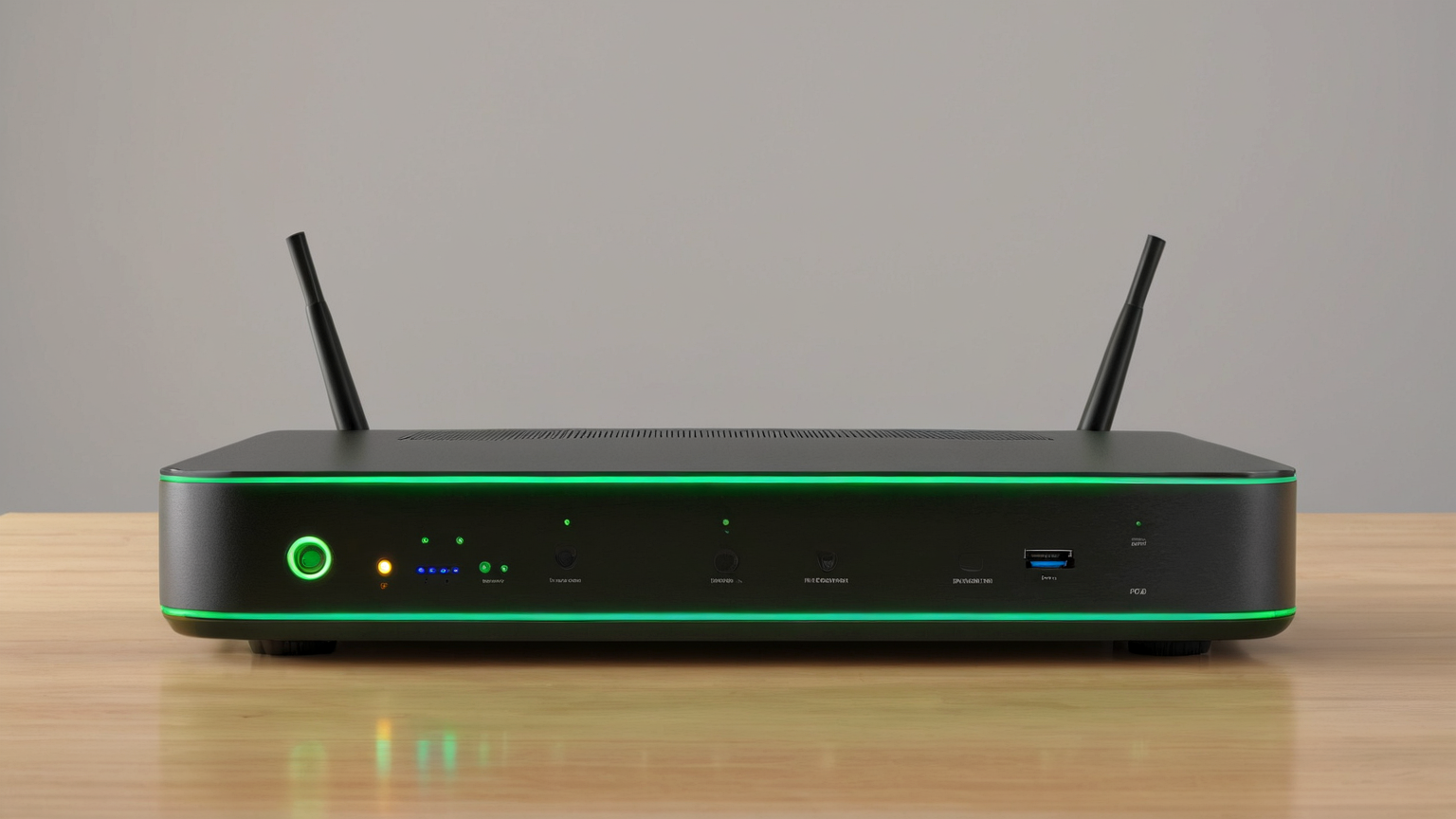
Use the vendor or ISP-supported update path, stable power, and a quiet time window. Read release notes when available, back up configuration if the interface supports it, and avoid interrupting the update. After reboot, verify internet access, Wi-Fi, guest network, DNS, parental controls, and any work VPN requirement.
Lock down administration
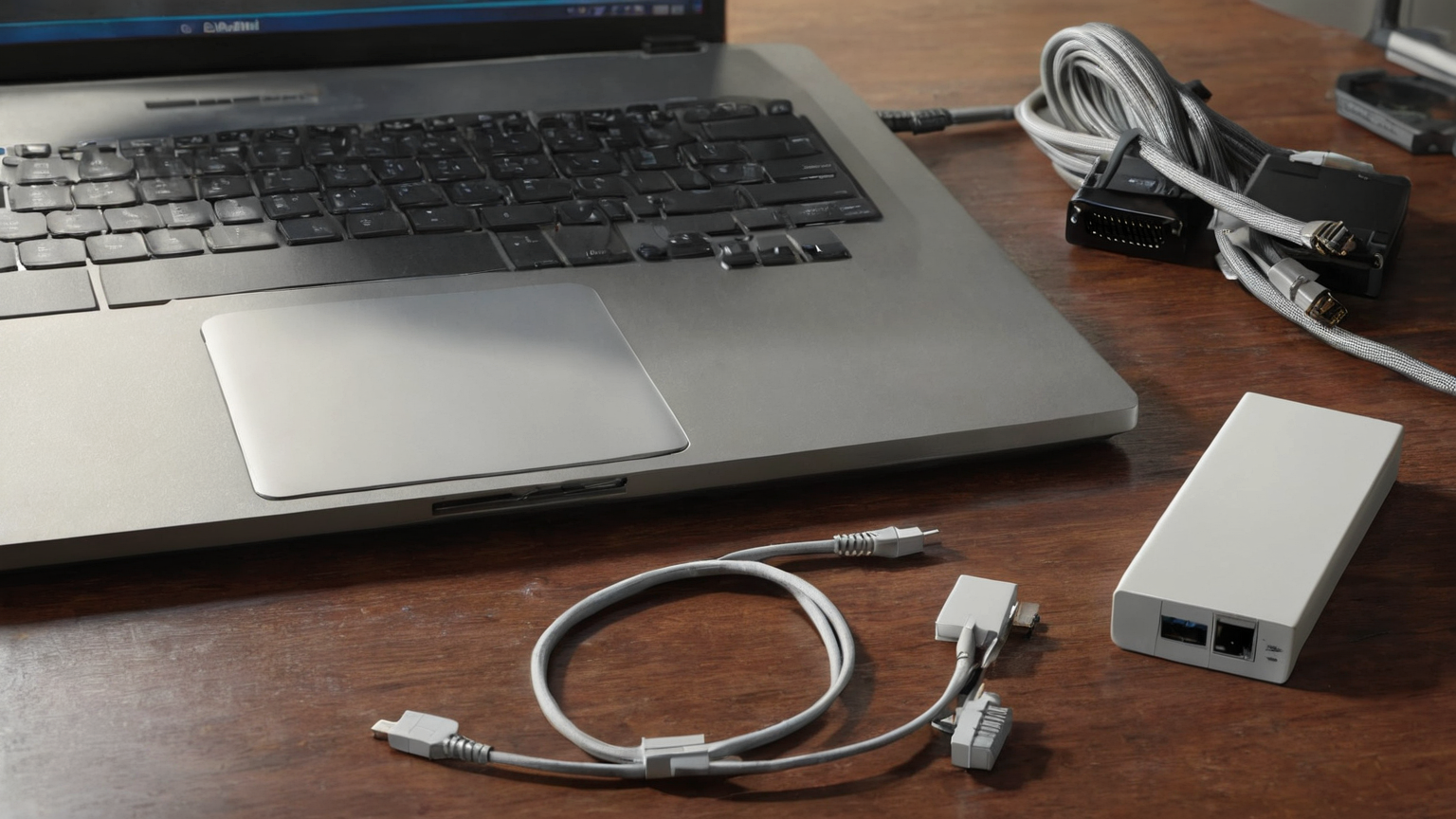
Change default admin credentials, disable remote administration unless explicitly needed, use strong Wi-Fi encryption supported by your devices, and separate guests or IoT where practical. Do not publish screenshots of admin pages because they can reveal model, IP layout, MAC addresses, or firmware details.
Segment what you can actually maintain
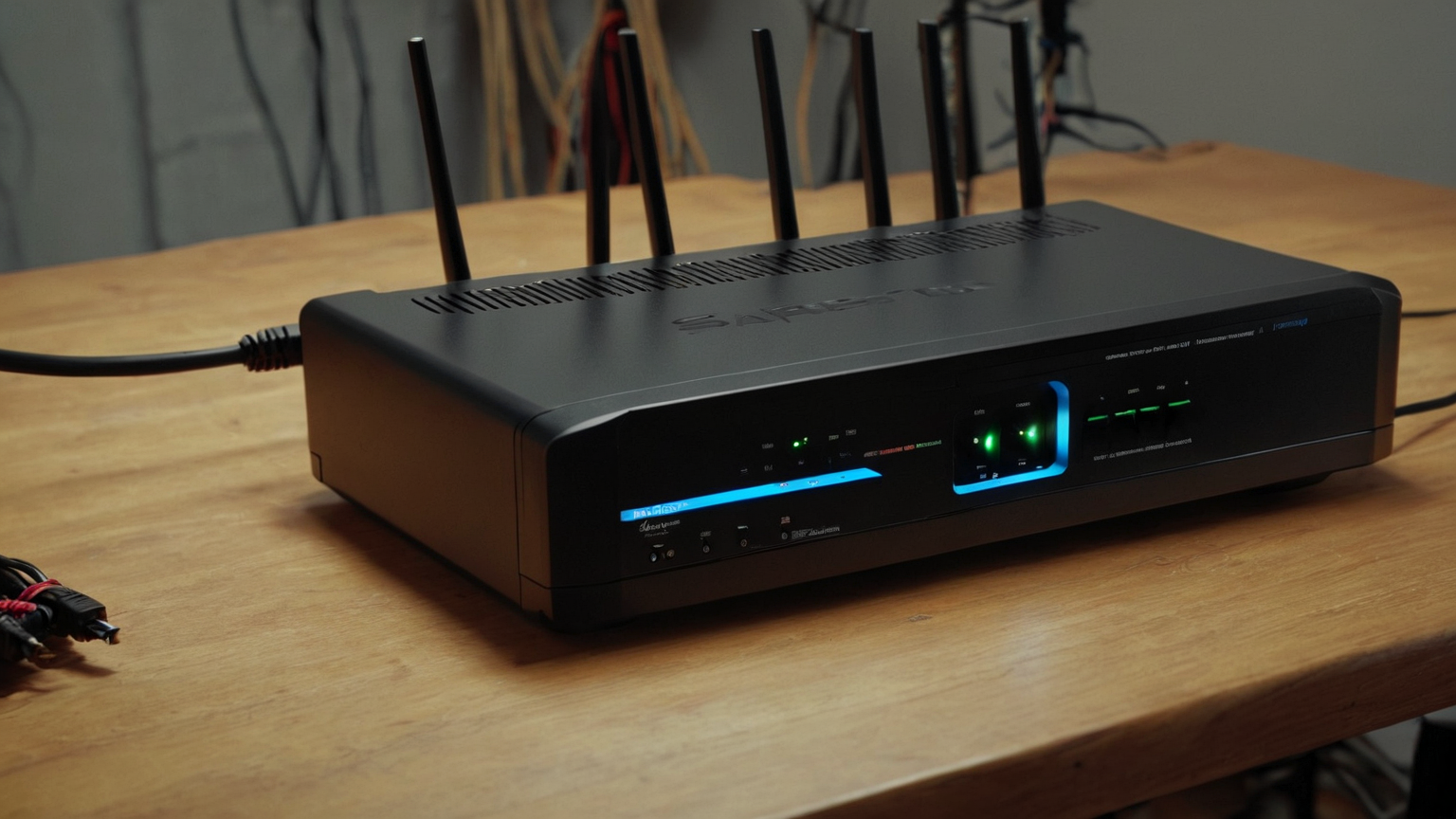
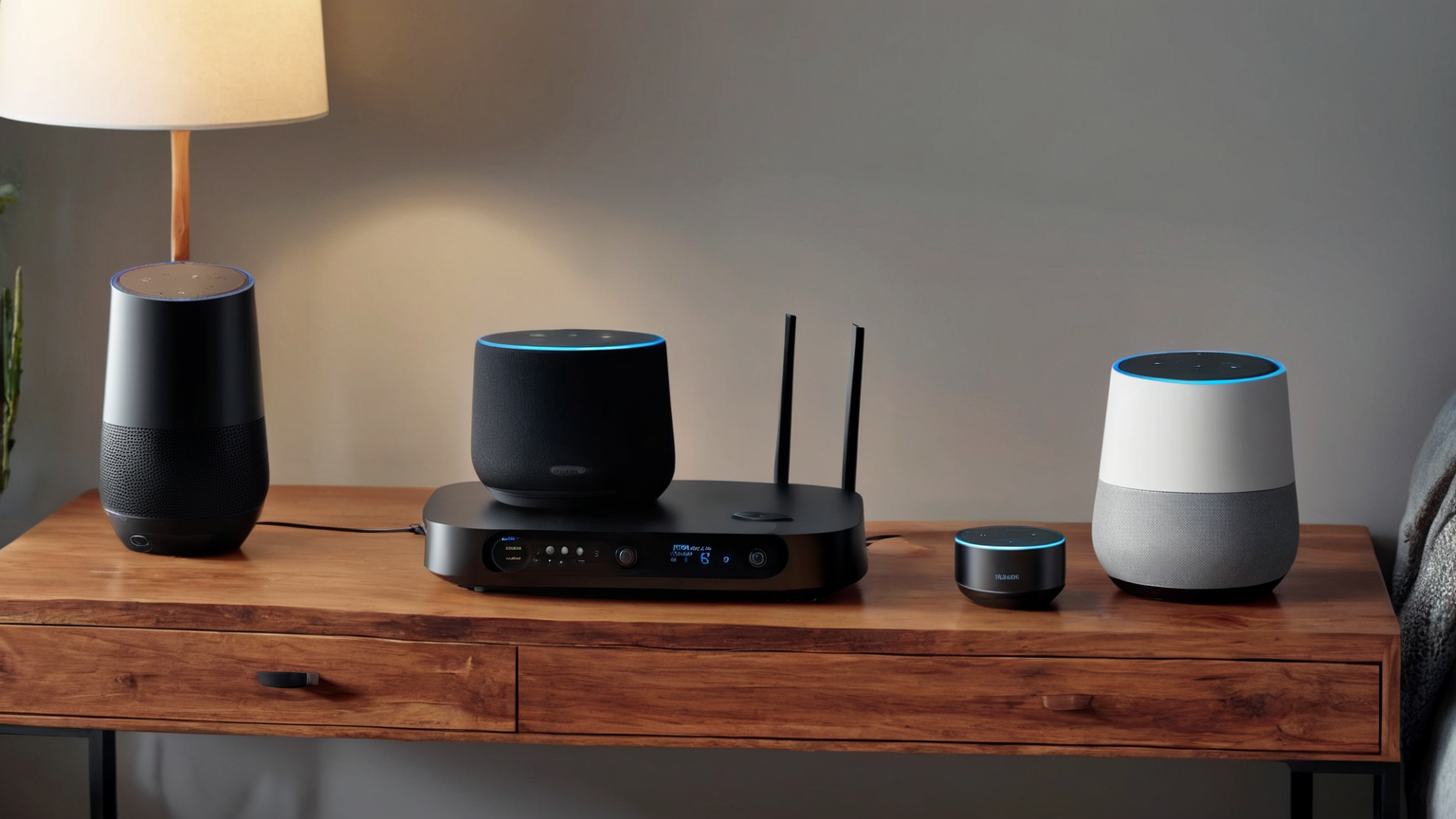
Guest networks are useful only if you know which devices belong there and how to troubleshoot them. Put visitors and low-trust smart devices on a separate network where supported, but document exceptions such as printers or speakers that need local discovery. Security that breaks household basics gets bypassed.
Replace unsupported or suspicious gear
If the router no longer receives updates, has unknown admin access, resets unexpectedly, exposes remote management you cannot disable, or cannot support basic encryption needs, replacement may be safer than another tweak. For ISP-owned equipment, ask the provider for supported replacement options.
Decision checklist
- Model, firmware, admin method, and ISP ownership are known.
- Firmware was updated through an official path.
- Remote administration, guest network, Wi-Fi encryption, and DNS settings were verified.
- Configuration backup or notes exist.
- Unsupported or suspicious hardware has a replacement path.
Common mistakes to avoid
| Mistake | Why it fails | Better action |
|---|---|---|
| Factory-resetting before taking notes | You can lose ISP settings, Wi-Fi names, static reservations, or parental controls without fixing the real problem | Photograph the cable layout, export config if available, and write down the current firmware version first |
| Updating during a busy work call | Firmware updates can reboot the router and disrupt VPNs, cameras, and smart-home devices | Schedule a quiet window and warn household members before rebooting |
| Leaving remote administration enabled | Exposed admin interfaces increase attack surface and can be abused if credentials leak | Disable remote admin unless the ISP requires it, then verify it stayed disabled |
| Keeping unsupported hardware online | Routers without security updates can remain vulnerable even with good passwords | Plan replacement when the vendor or ISP no longer provides firmware support |
FAQ
Is this a substitute for vendor or ISP support?
No. Follow the router vendor’s release notes, ISP equipment instructions, and your organization’s security policy if the router supports work-from-home access.
How often should I revisit router maintenance?
Check monthly for firmware updates if auto-update is unavailable, after any unexplained outage, after ISP equipment changes, and whenever a device on the network behaves suspiciously.
What is the safest first step?
Identify the exact router model, firmware version, ownership status, and admin method before changing settings; then back up configuration or notes where the interface allows it.