Home Security
Smart Home Guest Wi-Fi Isolation: A Practical IoT Safety Plan for 2026
A clear home-network plan for separating smart devices, guest Wi-Fi, router settings, updates, passwords, and household recovery steps without overcomplicating security.
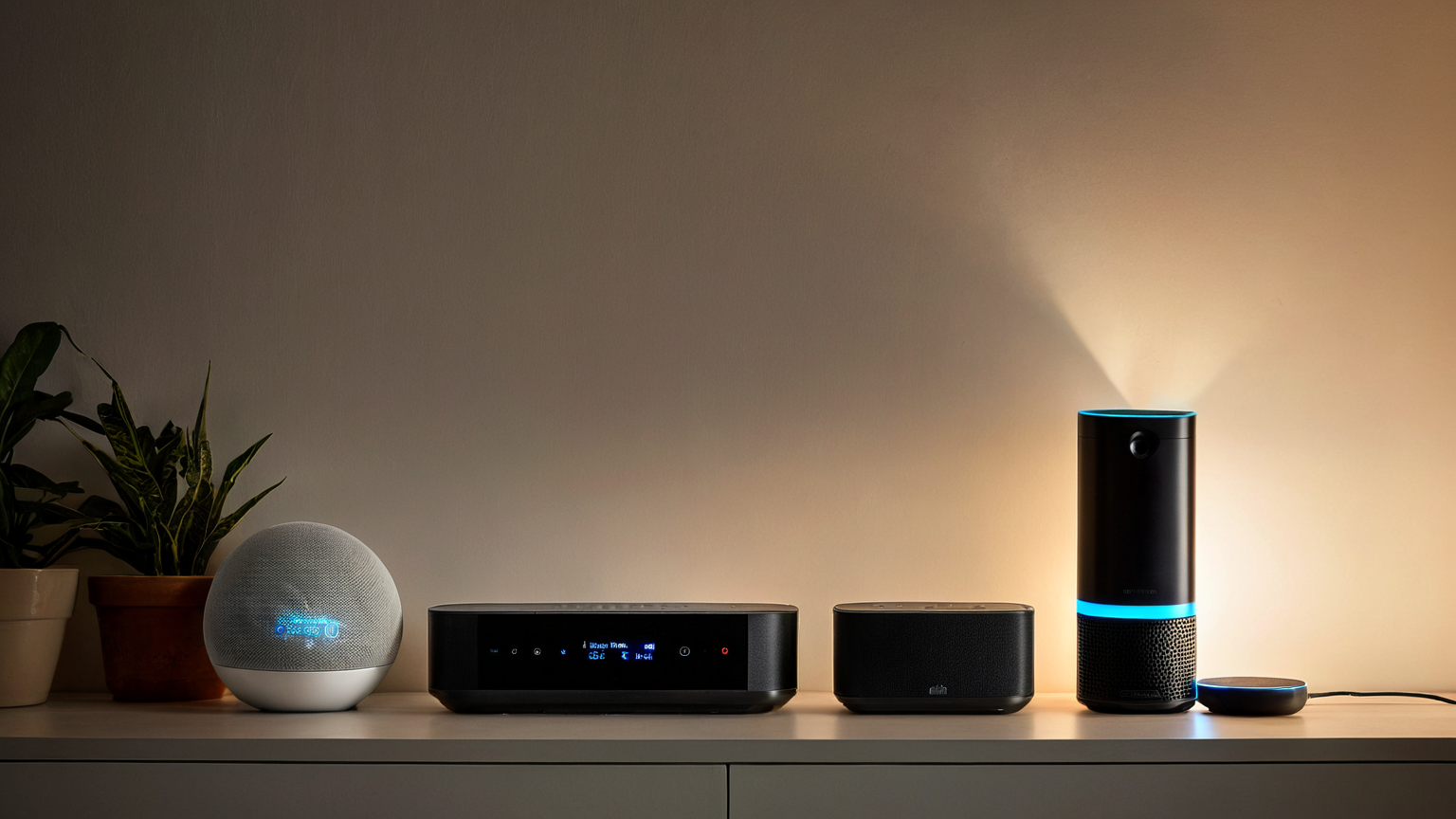
- Use source-backed steps before changing security settings.
- Prioritize MFA, updates, backups, segmentation, and phishing-resistant habits.
- Save only the guides you need; no account is required.
Updated May 29, 2026. Home routers and smart devices vary by vendor, app, and firmware. This guide focuses on low-risk household steps: inventory, guest-network isolation, updates, passwords, and a recovery plan. Do not change ISP, DNS, or business-critical settings if you do not know how to roll back.
Smart-home security fails when every bulb, camera, speaker, tablet, work laptop, and guest phone lives on the same network with the same password forever. You do not need enterprise networking to improve that. You need to know what is connected, separate devices by trust level, keep router and device software current, and keep recovery information somewhere safe.
The simple network zoning model
| Zone | Examples | Goal |
|---|---|---|
| Trusted personal devices | Work laptop, personal laptop, main phone | Protect accounts, files, and work sessions |
| Smart-home devices | Cameras, bulbs, speakers, plugs, TV | Limit what low-trust devices can reach |
| Guest devices | Visitors, temporary tablets, unknown phones | Give internet without sharing the household password |
| Recovery tools | Router admin login, ISP account, backup phone hotspot | Restore service when something breaks |
For many households, a router guest network with device isolation enabled is enough to start. More advanced routers may offer IoT networks or VLANs, but the best control is the one you can maintain.
Step 1: inventory before changing settings
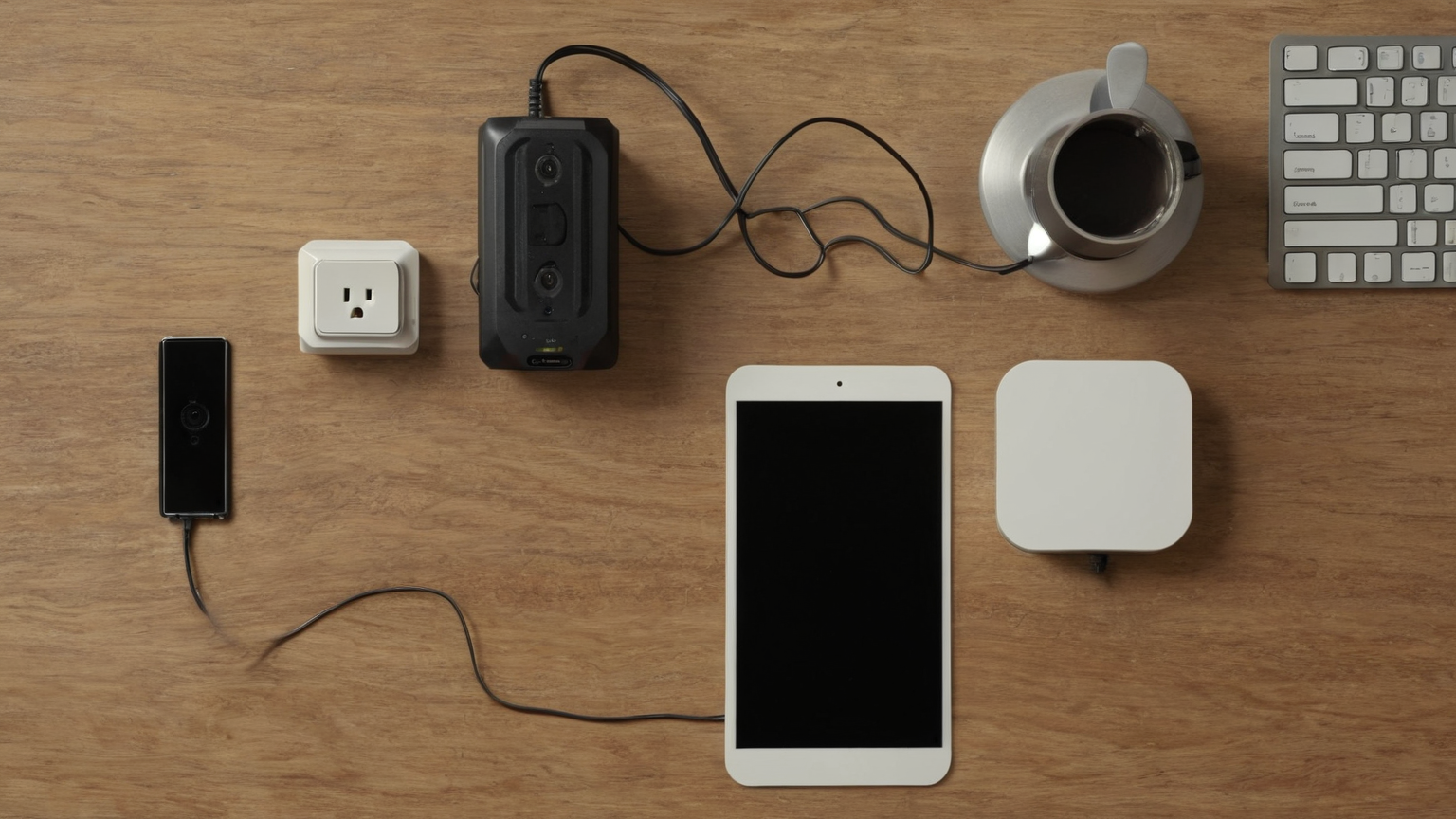
List devices by room, owner, app, and reason they need network access. Do not write passwords on the sheet. Capture only safe operational facts: device name, approximate purchase year, app account owner, whether it has a camera or microphone, and whether it needs to talk to a local hub.
Mark devices that are sensitive: cameras, door locks, garage doors, baby monitors, work devices, and anything with payment or voice-assistant access. Those deserve extra caution before moving networks because a broken setup can affect safety or access.
Step 2: create guest Wi-Fi intentionally
Open your router app or admin page and look for guest network, IoT network, or device isolation. Use modern encryption if available, a strong unique password, and a network name that does not expose private information. If the router offers a setting that blocks guest devices from seeing local devices, enable it for visitors.
For smart-home devices, test in groups. Move a low-risk smart plug first, then a speaker, then a camera only after you understand what breaks. Some devices require your phone to be on the same network for setup but work afterward through a cloud account. Others need local discovery every day. Document the behavior.
Step 3: decide what stays trusted
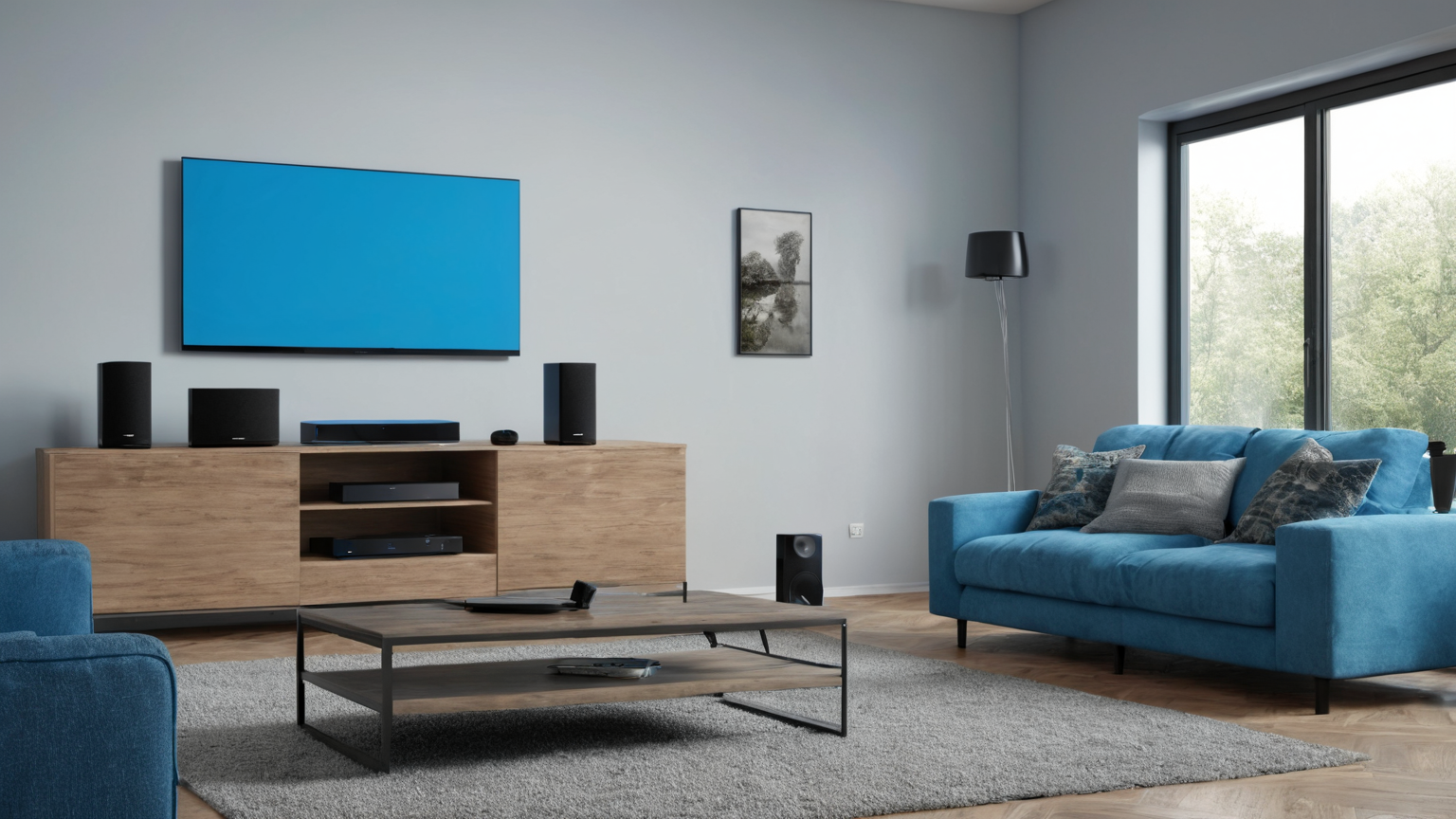
Your work laptop and personal laptop should not share a trust zone with every cheap smart plug. Keep devices with important files and accounts on the trusted network. Put guests on guest Wi-Fi. Put devices that only need internet on the IoT or guest network if they still work.
Cameras and locks are not automatically safe because they are isolated. They also need strong account passwords, MFA where available, firmware updates, and vendor support you can trust. Isolation limits blast radius; it does not replace account security.
Step 4: build a monthly maintenance routine
Once a month, check router firmware, smart-device app updates, unknown devices, and account security. Remove devices you no longer use. Change shared guest passwords after parties, rentals, or long visits. If a vendor stopped supporting a device that has a camera or lock function, treat replacement as a security decision, not a gadget upgrade.
Use a password manager for router, ISP, and smart-home accounts. Turn on MFA for accounts that control cameras, locks, cloud storage, or purchases. If your router supports automatic security updates, consider enabling them after reading how the vendor handles reboots.
Troubleshooting without weakening security
If a device stops working after isolation, avoid the common mistake of moving everything back forever. Instead, test narrowly:
- Does the phone need to be temporarily on the same network only for setup?
- Does the device need a local hub on the trusted network?
- Can the router allow only the required local discovery feature?
- Is cloud access disabled by the vendor account settings?
- Did you accidentally block the device from the internet entirely?
If you cannot make a sensitive device work safely, document the limitation and decide whether convenience justifies the risk. Sometimes the secure answer is replacing the device, not weakening the whole network.
Bottom line
A secure smart home is not a perfect diagram. It is a maintained household system: inventory devices, separate guests and low-trust gadgets, update software, use strong passwords and MFA, and keep a rollback plan. Start with the guest network, then improve one device group at a time.