Network Security
Router Security Audit Checklist 2026: IoT, Guest Wi-Fi, DNS, Backups
A practical home router security audit for 2026: firmware, WPA3, guest Wi-Fi, IoT isolation, DNS filtering, admin access, and recovery backups.
- Use source-backed steps before changing security settings.
- Prioritize MFA, updates, backups, segmentation, and phishing-resistant habits.
- Save only the guides you need; no account is required.
A home router is no longer just a box that makes Wi-Fi work. It is the trust boundary between work laptops, family phones, smart TVs, doorbells, thermostats, cameras, game consoles, printers, and every cloud service those devices contact. The uncomfortable part is that most households configure the router once, forget the admin password, and then keep adding devices for years.
This 2026 audit is designed for real homes, not lab networks. The goal is not to turn a family network into an enterprise firewall. The goal is to remove the common failure paths: abandoned firmware, weak admin access, flat networks where every device can see every other device, risky remote-management settings, poor recovery notes, and missing backups.
1. Inventory the Router Before Changing Settings
Start by identifying exactly what controls your network. Many homes have an ISP gateway plus a separate mesh system. Others have a modem, a router, and several access points. Write down the brand, model, firmware version, admin URL, who owns the device, and whether it is rented from the ISP. This inventory matters because instructions differ between an eero, UniFi gateway, ASUS router, Google Nest Wifi, TP-Link Deco, or a cable-company gateway.
If the ISP gateway is still broadcasting Wi-Fi while a mesh system also broadcasts Wi-Fi, you may have overlapping networks and double NAT. That is not automatically dangerous, but it complicates troubleshooting and can leave old SSIDs active with forgotten passwords. Decide which device is the actual router and which devices are only access points.
2. Update Firmware and Confirm Update Support
Firmware is the router’s operating system. It fixes security vulnerabilities, improves Wi-Fi stability, and sometimes adds modern protections such as WPA3 or DNS-over-HTTPS. Log in to the admin app or web interface and record the current version. Then check the vendor support page for the latest release and the device’s support status.
Automatic firmware updates should be enabled when the vendor has a good reputation and release notes are visible. If your router has not received an update in more than two years, treat that as a buying signal. A router can pass speed tests while still running abandoned code.
3. Lock Down Admin Access
The Wi-Fi password and the router admin password should not be the same. The admin password protects DNS settings, port forwards, device names, parental controls, and sometimes VPN access. Use a unique password stored in a password manager. Disable remote administration unless you truly need it and understand how it is protected. If the router supports account-level two-factor authentication for its cloud app, enable it.
Also check whether the router exposes admin pages to guest or IoT networks. A phone on guest Wi-Fi should not be able to open the router admin page. If it can, look for settings named client isolation, guest isolation, access intranet, or local network access.
4. Use WPA3 When Practical, WPA2-AES When Compatibility Requires It
WPA3-Personal is the modern default for new devices. If every important device supports it, use WPA3-only. Many households still have older printers, cameras, e-readers, or smart plugs that require WPA2. In that case, use WPA2/WPA3 transition mode or create a separate IoT SSID. Avoid WEP, WPA, TKIP, and short passwords.
A strong Wi-Fi password does not need to be ugly. A long random passphrase stored in a password manager is easier to share safely than a short complex password reused for years. When a roommate, contractor, or old device no longer needs access, rotate the guest password rather than the primary password.
5. Segment IoT and Guest Devices
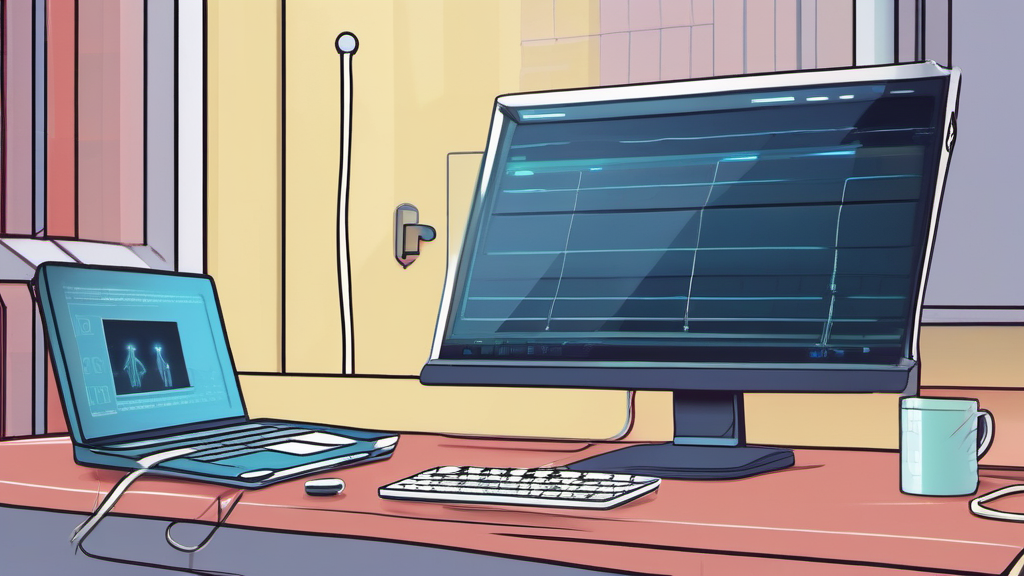
Segmentation is the highest-value upgrade for most homes. Put untrusted or rarely updated devices on a guest or IoT network: cameras, smart speakers, doorbells, bulbs, robot vacuums, TVs, and appliances. Keep laptops, phones, NAS devices, password-manager recovery kits, and work machines on the trusted network.
The tradeoff is convenience. Some casting, AirPlay, printer, and home-automation features need local discovery. Do not blindly isolate everything if it breaks daily routines. Instead, segment by risk and function. A smart TV rarely needs to reach a tax laptop. A printer may need limited local access. A home-assistant hub may need a carefully documented exception.
6. Review Port Forwards, UPnP, and Remote Access
Port forwarding exposes internal services to the internet. That can be necessary for self-hosting, game servers, or remote access, but forgotten forwards are common. Delete any rule you cannot explain. Universal Plug and Play can let devices create port forwards automatically. If nobody in the home needs it, disable it. If gaming or video calls depend on it, leave it on only after documenting why.
Remote desktop, NAS admin pages, IP cameras, and home automation dashboards should not be exposed with a simple port forward. Use a reputable VPN, a zero-trust tunnel, or the vendor’s supported secure remote-access method. The test is simple: if a random internet scanner can reach the login page, your password becomes the last line of defense.
7. Add DNS Filtering Without Breaking the Household
DNS filtering blocks known malware, phishing, adult content, or tracking domains before a device connects. It is not a replacement for browser security, but it is a strong household layer because it covers devices that cannot run endpoint software. Start with a conservative malware-blocking policy. Aggressive blocklists can break banking apps, streaming devices, school portals, and game launchers.
Good DNS filtering should have an emergency bypass plan. Document how to switch back to ISP DNS, which app controls the policy, and which family member can make a temporary exception. Security that nobody can troubleshoot will eventually be disabled in frustration.
8. Name Devices and Remove Unknown Clients
Most routers show a client list with device names, MAC addresses, and connection history. Rename devices in plain language: “Mina iPhone,” “Work ThinkPad,” “Living Room TV,” “Garage Camera.” Unknown devices are easier to spot when everything else is labeled.
Do not panic when you see randomized MAC addresses. Modern phones and laptops often use private Wi-Fi addresses for privacy. Match by temporarily disconnecting a device or checking its Wi-Fi details. Remove old devices from saved access lists and rotate the guest password when unknown clients remain unexplained.
9. Back Up Configuration and Recovery Notes
A secure network should be recoverable. Export the router configuration if the model supports it. Save screenshots of critical settings if it does not. Store the admin URL, router model, ISP account notes, DNS provider, SSID names, guest password location, and port-forward explanations in a password manager secure note.
The recovery test is practical: if the router fails on a workday, can another adult rebuild basic internet and Wi-Fi in 30 minutes? If the answer is no, the setup is too dependent on memory.
10. The Quarterly Router Audit Checklist
Use this checklist every three months:
- Confirm firmware is current and still supported.
- Confirm admin password is unique and stored safely.
- Confirm remote administration is off unless documented.
- Confirm WPA3 or WPA2-AES is used; no WEP, WPA, or TKIP.
- Confirm guest and IoT networks cannot reach trusted devices.
- Review port forwards and UPnP.
- Review DNS filtering logs and blocked-site complaints.
- Rename unknown devices or remove stale entries.
- Update the router recovery note.
- Reboot only after saving settings and confirming backups.
11. How to Prioritize Fixes When Time Is Limited
If you only have 30 minutes, start with internet-facing risk. Update firmware, disable remote administration, remove unexplained port forwards, and turn off UPnP if you do not actively need it. These changes reduce the chance that a router bug, exposed admin page, or forgotten game-server rule becomes the easiest path into the home network.
If you have another 30 minutes, separate devices by trust level. Work laptops, phones, and password managers belong on the most trusted network. Cameras, smart speakers, robot vacuums, streaming sticks, and guest phones belong somewhere more restricted. The exact VLAN design can wait; the important principle is that an unpatched gadget should not be able to browse file shares or reach every laptop in the house.
Finally, document the setup. Many home networks are secure only while the person who configured them remembers every choice. A recovery note makes security durable. It also prevents emergency resets from undoing the good work because nobody can remember which DNS provider, guest password, or port-forward rule was intentional.
12. When to Replace the Router Instead of Tweaking It
A router that no longer receives security updates is not a bargain. If the vendor has ended support, if firmware updates require obscure manual downloads that have not changed in years, or if the admin interface still offers obsolete encryption choices as defaults, replacement may be safer than more tweaking. The same is true when the router cannot isolate guest or IoT devices and the household has many smart-home products.
Replacement does not have to mean enterprise gear. For most homes, the useful features are automatic updates, clear guest-network isolation, WPA3 or strong WPA2-AES support, easy device naming, simple DNS controls, and a configuration export. Mesh systems can be reasonable when coverage is the real problem, but coverage should not distract from security basics. A fast router with exposed administration and a flat network is still fragile.
Bottom Line
Router security improves fastest when you focus on failure paths rather than gadget features. Keep firmware supported, separate risky devices, remove unnecessary internet exposure, use DNS filtering carefully, and write down how to recover. That combination is boring, affordable, and far stronger than buying a premium router while leaving the same old flat network behind.
Visual walk-through

