Home Security
Home Wi-Fi Guest Network Plan: Separate Smart Devices Without Breaking the Household
A cautious 2026 household guide to guest Wi-Fi, smart-device separation, router admin hygiene, privacy testing, and rollback planning.

- Use source-backed steps before changing security settings.
- Prioritize MFA, updates, backups, segmentation, and phishing-resistant habits.
- Save only the guides you need; no account is required.
This guide is current as of 2026-06-11. It is home-network security education for guest Wi-Fi, smart-device separation, and router hygiene; it is not incident-response advice for an active compromise.
Quick decision table
| Situation | Best first move | Avoid | Proof the plan is working |
|---|---|---|---|
| Visitors need Wi-Fi | Create a guest password distinct from the main network | Sharing router admin credentials | Guest phone can browse but not see private devices |
| Smart devices are cluttered | Move one low-risk device and test routines | Moving locks/cameras first | Daily controls still work after the move |
| Router settings are unclear | Record rollback steps before changing anything | Clicking unknown advanced toggles | You can restore the old network if needed |
| Old device lacks updates | Isolate, replace, or retire internet access | Giving it permanent main-network trust | Unknown devices disappear from the trusted list |
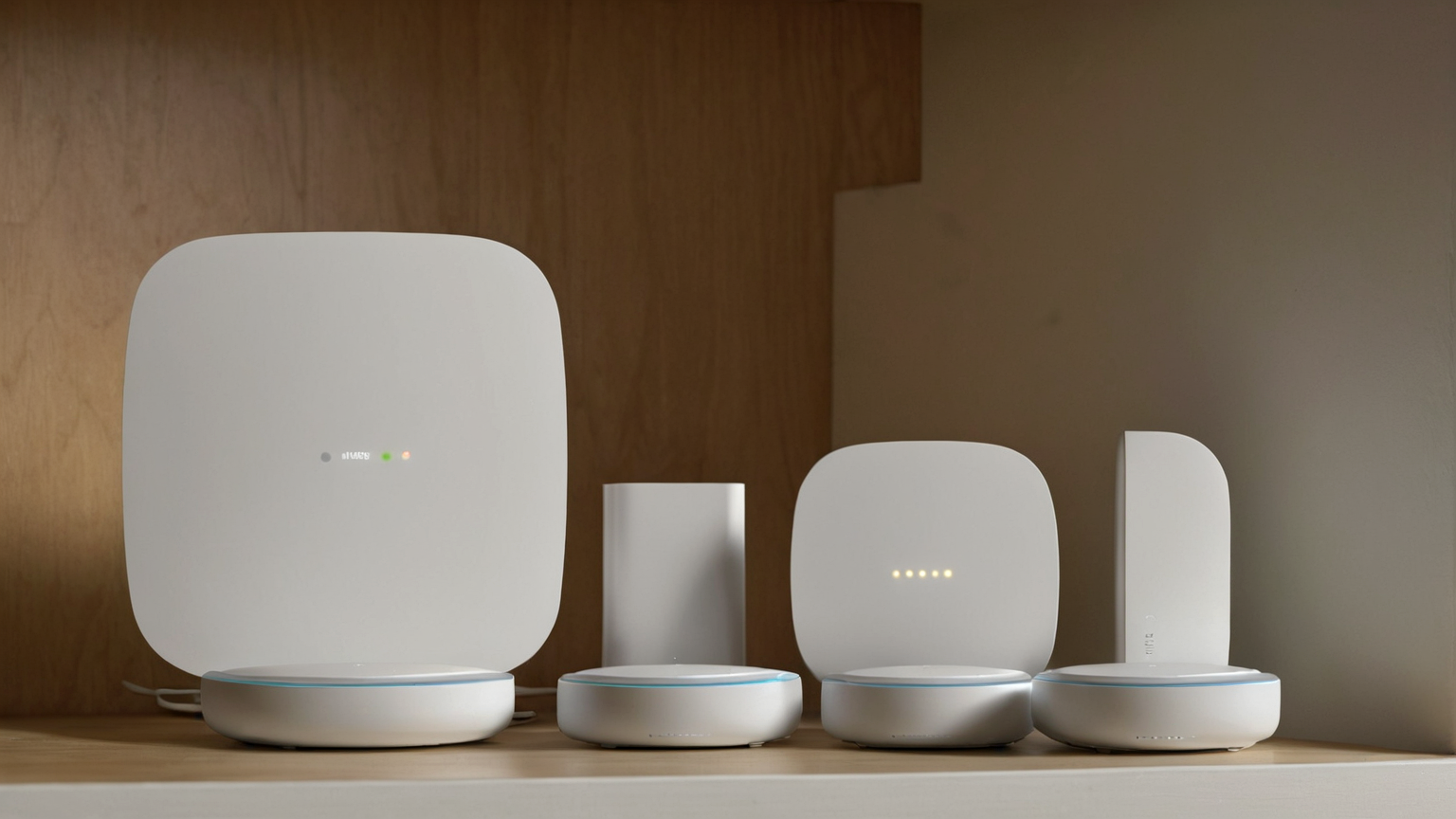
A guest network can improve household privacy, but only if readers understand what it can and cannot do. It is not a magic wall, and every router brand names settings differently. This June 2026 guide gives a conservative plan for separating visitors and smart devices without breaking printers, speakers, cameras, thermostats, or family routines. It avoids router-specific promises and focuses on safe, testable decisions.
Start with the assets. List the devices that hold sensitive data: laptops, phones, work machines, tablets, network storage, password managers, and family cloud accounts. Then list devices that should not need to see those assets: visitors phones, smart plugs, speakers, cameras, TVs, game consoles, robot vacuums, and older devices that rarely receive updates. The point is to reduce unnecessary trust, not to shame every gadget.
Step-by-step checklist
- Record the current SSID, router admin path, firmware version, and rollback steps.
- Update router firmware and replace default admin credentials before moving devices.
- Create a separate guest or IoT network with a password that differs from the main network.
- Move one low-risk smart device first and test printing, casting, cameras, locks, and family routines.
- Review the connected-device list for unknown names after guests, rentals, or new gadgets.
- Keep screenshots and support requests free of passwords, QR codes, public IPs, and account details.
Before changing settings, record the current network name, router admin access method, recovery email, and how to factory reset if needed. Update router firmware through the official admin interface or vendor app, change the default admin password, and confirm WPA2 or WPA3 is enabled. If the router is supplied by an ISP, check whether guest-network isolation is actually available; some settings only create a second name without meaningful separation.

Create a guest network for visitors first. Use a different password from the main network, do not share the router admin password, and disable local access if the option exists. Test with a spare phone: can it browse the web, and can it see a laptop, printer, or shared folder on the main network? If it can still reach private devices, note that the network is convenience-only and not strong segmentation.
Common mistakes to avoid
| Mistake | Why it weakens the plan | Safer replacement |
|---|---|---|
| Sharing the main Wi-Fi with every visitor | Guest devices may see trusted household devices | Use a guest network with isolation when available |
| Moving locks or cameras first | A failed setup can break safety routines | Test with low-risk plugs or speakers first |
| Leaving old devices trusted forever | Unsupported firmware increases exposure | Isolate, replace, or retire internet access |
| Posting router screenshots unredacted | They may expose SSIDs, QR codes, or addresses | Redact sensitive fields before asking for help |
Smart-device separation is more delicate. Some devices need a phone on the same network for setup, casting, printing, or local control. Move one low-risk device first, then test daily routines before moving cameras, locks, alarms, or medical-adjacent devices. Do not strand safety devices on a network that family members cannot manage during an outage or emergency.
Use names that reveal nothing sensitive. A network name should not advertise the family name, apartment number, work employer, router model, or security brand. A good password can be shared safely with guests without revealing the main household secret. Rotate guest passwords after large gatherings, short-term rentals, contractors, or any situation where the password spread further than intended.
Privacy also includes admin hygiene. Disable remote administration unless there is a specific need, keep the router account protected, remove unknown devices, and avoid installing unofficial firmware unless you are prepared to maintain it. If a device stops receiving updates and cannot be isolated, replace it or retire internet access rather than giving it permanent trust.
AdSense-readiness note: this article avoids fear-based claims and does not tell readers to download tools or bypass vendor security. It improves trust by emphasizing official settings, cautious testing, privacy boundaries, and rollback planning.
FAQ
Does this replace professional help?
No. It is a prevention and setup checklist. If you suspect account theft, malware, router compromise, or unauthorized access, preserve evidence and follow trusted incident-response guidance.
Why include so many official links?
AdSense-ready helpful content should let readers verify claims. Source links also reduce the chance that a stale social-media shortcut becomes the household plan.
What is the next improvement?
Turn the checklist into a recurring household review and link it from related posts so readers can move from awareness to action without searching the whole site.