authentication
Passkey Migration Guide 2026: When to Switch From Passwords
Step-by-step guide for migrating to passkeys at home and work. Browser support, sync limitations, and the accounts to switch first.
- Use source-backed steps before changing security settings.
- Prioritize MFA, updates, backups, segmentation, and phishing-resistant habits.
- Save only the guides you need; no account is required.
Passkeys are the most significant authentication improvement in 20 years, replacing the password as the primary way to prove identity online. As of 2026, Apple, Google, Microsoft, and most major websites support passkeys, and the migration path from passwords is well-defined. This guide walks through the practical migration: which accounts to switch first, how cross-device sync actually works, the limitations that still exist, and the tools that smooth the transition. Done properly, passkey migration eliminates the largest single category of account compromise (phishing) at the cost of a few hours of setup time.
What Makes Passkeys Different
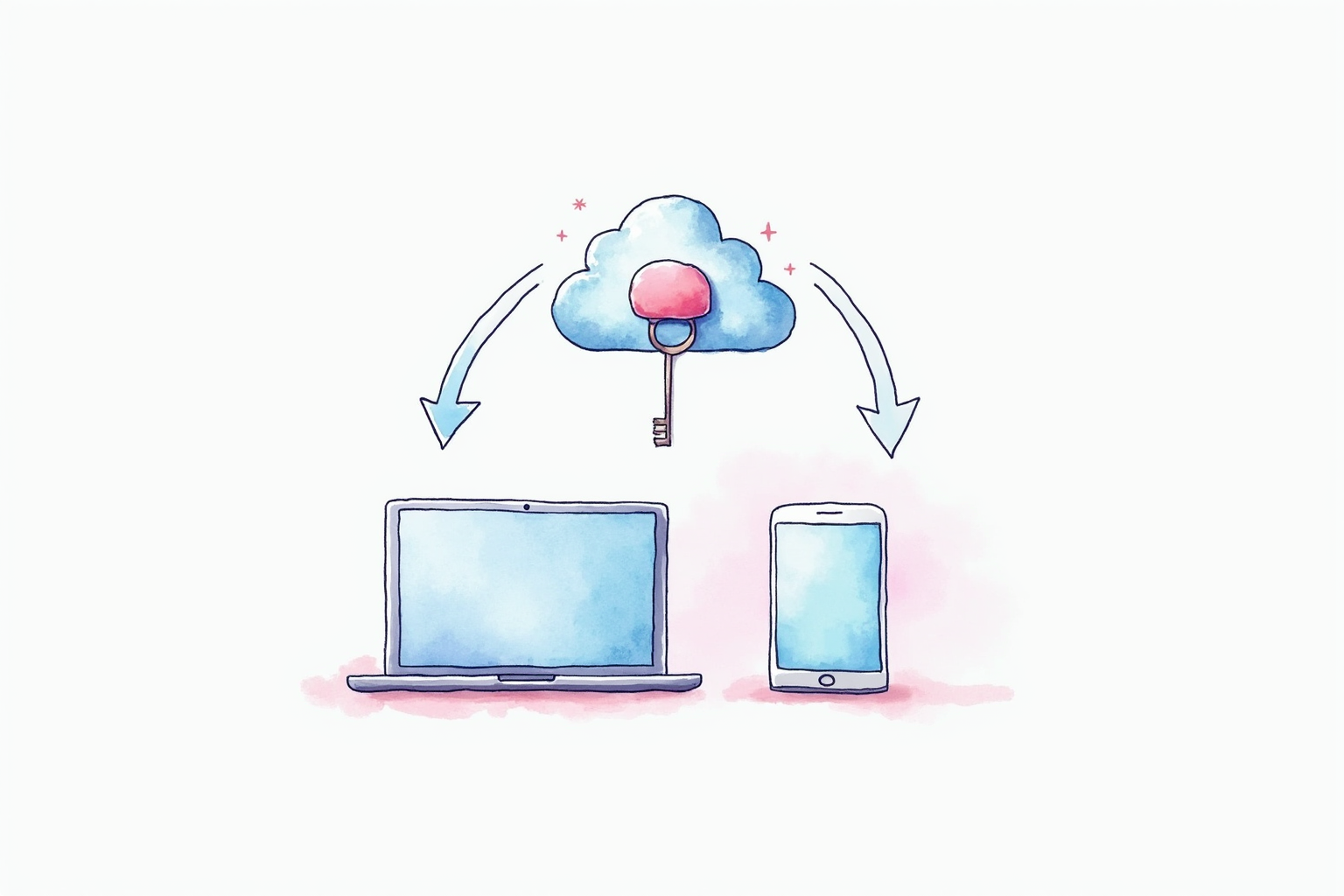
A password is a shared secret you tell a service so they can compare against their stored copy. The model has three fundamental weaknesses: the secret can be stolen at the service (database breach), at the user’s device (malware), or in transit (phishing). Passkeys remove all three. The user’s device generates a public-private key pair when registering with a service, sends the public key to the service, and keeps the private key locally protected by biometrics or device PIN. Authentication is a cryptographic challenge-response that never transmits the private key.
The phishing resistance comes from the WebAuthn protocol binding passkeys to specific domains. A passkey registered with bank.com cannot be used on bank-phishing.com, regardless of how convincing the phishing site looks. The browser refuses to send the cryptographic response to the wrong domain. This single property eliminates the most common attack vector responsible for most account breaches according to CISA and Verizon data.
Step 1 — Audit Your Critical Accounts
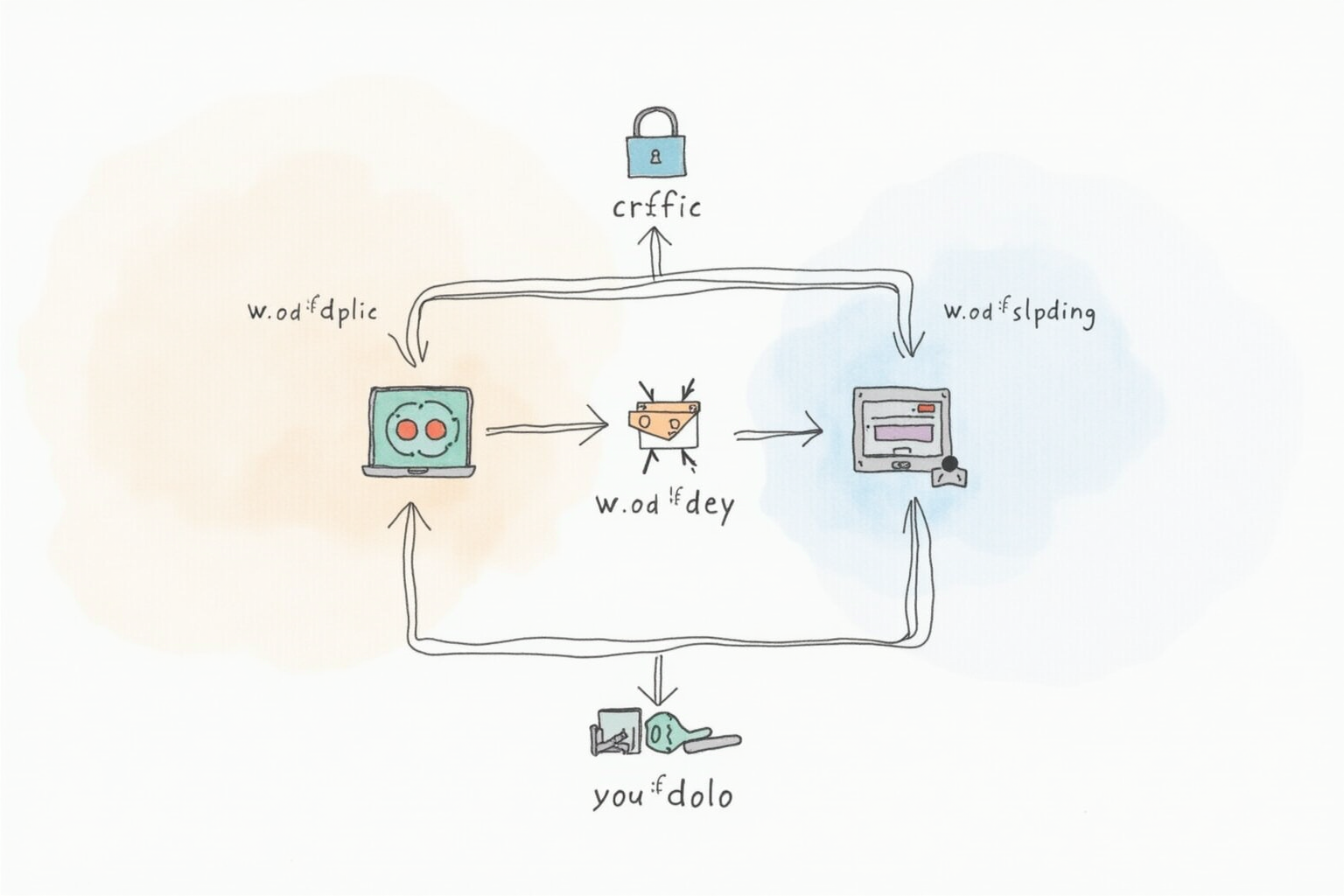
Before migrating, list the accounts that matter most. Your primary email is the foundation — losing email access typically means losing all other accounts since email is the universal password reset channel. Your password manager (if used) is next, then any accounts that control other accounts (Apple ID, Google, Microsoft work account). Finally, financial accounts (banks, brokerages, retirement) and high-value identity accounts (government services, healthcare portals).
Most of these accounts now support passkeys as of 2026 — Gmail, Apple ID, Microsoft accounts, the major US banks, and most financial platforms have rolled out passkey support during 2024-2025. The remaining gap is some specialized industry portals and a few smaller services. The migration order should follow account criticality, switching highest-risk accounts first.
Step 2 — Choose Your Passkey Storage
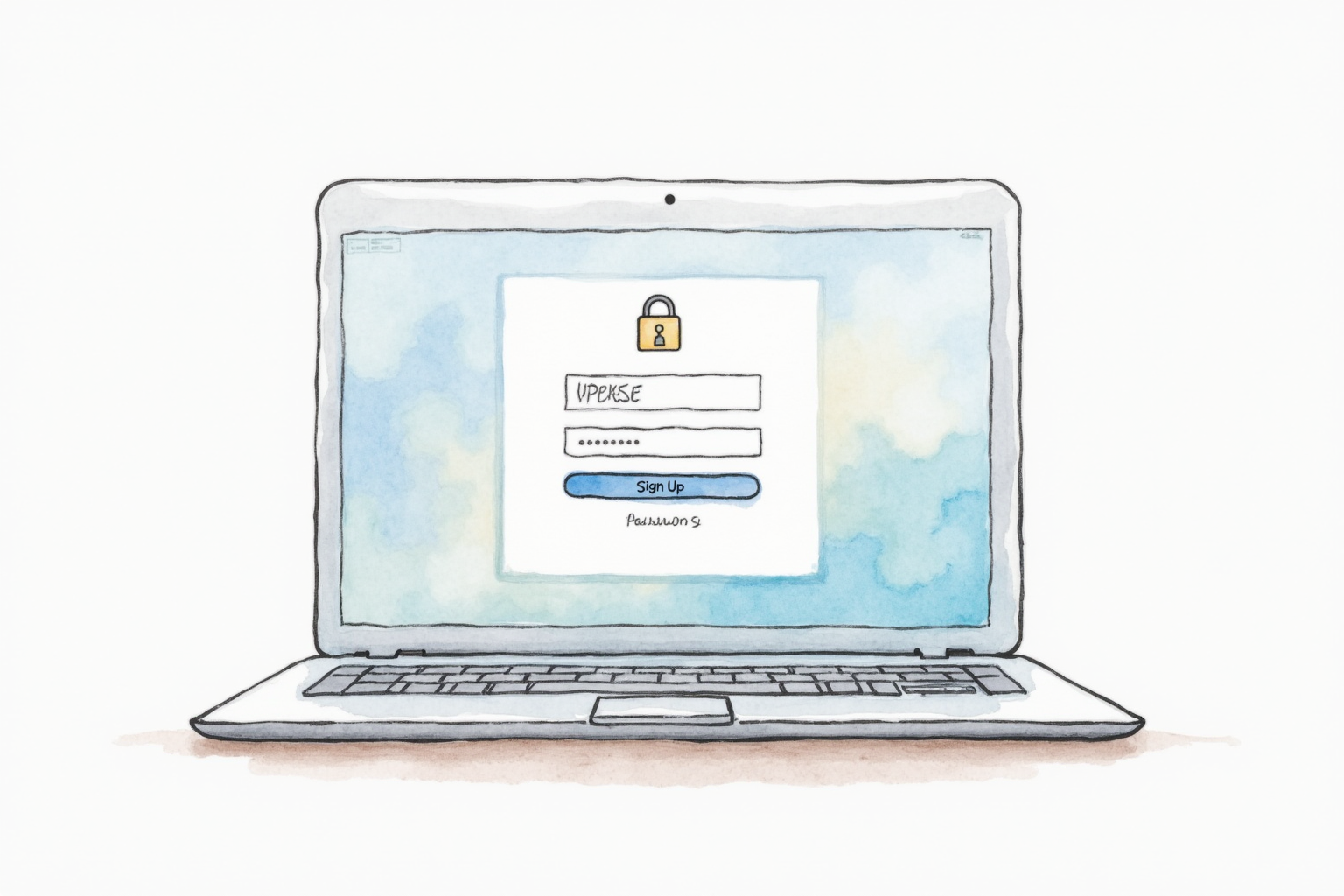
Three paths exist for storing passkeys, each with different tradeoffs.
The first is platform-native sync — iCloud Keychain for Apple users, Google Password Manager for Android/Chrome users, Microsoft Authenticator for Windows users. This works well within a single ecosystem but creates friction across ecosystems. Cross-device sign-in requires QR code scanning between devices when using passkeys from one platform on another. For users with consistent device ecosystems, platform-native sync is the simplest path.
The second is third-party password manager sync — 1Password, Bitwarden, Dashlane all now support passkey storage and cross-platform sync. This eliminates the cross-ecosystem friction at the cost of trusting a third party with passkey storage. The encryption model (zero-knowledge with master password) is sound, but it introduces an additional dependency. For users with mixed device ecosystems (Mac + Android, Windows + iOS), password manager sync is usually the right choice.
The third is hardware security keys (covered in detail in our separate hardware key article). YubiKey and similar devices store passkeys on physical hardware that travels with the user. This is the most phishing-resistant option but adds the most friction. Best for high-risk users (security researchers, journalists, executives, anyone facing targeted attacks) and as backup authentication for primary platform-native passkeys.
Step 3 — Migrate Your Email First
Start the migration with your primary email account because it controls everything else. For Gmail users: Settings → Security → 2-Step Verification → Passkeys. Add a passkey using the device you trust most (typically your phone). Verify the passkey works by signing out and back in. Then register a second passkey on a different device as backup — this matters because losing your primary device without a backup creates a recovery situation that takes hours to resolve.
Repeat for any secondary email accounts, and for Apple ID, Microsoft account, or other root identity accounts. The pattern is consistent: register the primary passkey, verify it works, register a backup. Apple and Google both support multiple passkeys per account, and we strongly recommend using this capability for any account where losing access would be costly.
Step 4 — Migrate High-Value Financial And Identity Accounts
After email, move to financial accounts (Vanguard, Fidelity, Schwab, Chase, Bank of America, Wells Fargo) and identity accounts (DMV, Social Security, IRS). Each follows a similar pattern: log in, find security settings, register passkey, register backup passkey. The user interface varies slightly between services but the structure is the same. Plan on 5 to 15 minutes per account for the initial setup, less for subsequent ones as the pattern becomes familiar.
Some accounts allow passkey registration but still require password as fallback. This is acceptable during the transition period — passkeys can coexist with passwords, and using the passkey when available eliminates the daily phishing risk while password recovery remains available for edge cases. As account support matures, you can disable password fallback and rely entirely on passkey authentication.
What Still Does Not Work Smoothly
Three friction points remain in 2026 passkey deployments. Cross-ecosystem sign-in works but requires QR code scanning, which is awkward in tablet or shared-computer scenarios. Browser extension support varies — passkeys in browsers that are not the device’s native browser (using Chrome on a Mac with iCloud Keychain passkeys, for instance) sometimes fail to detect available passkeys. Recovery flows for lost-device scenarios are not yet standardized; each service handles “I lost my phone with my only passkey” differently, with varying levels of help.
These friction points are improving with each browser and platform release. The remaining gaps do not justify avoiding passkey migration — they justify having backups, registering passkeys on multiple devices, and keeping password recovery available as a fallback during the transition period.
Migration Timeline And Effort
Plan on roughly 8 hours total spread across 2-3 weeks to migrate the typical user’s 15-25 critical accounts. The setup time per account is short (5-15 minutes), but the validation and backup-registration step doubles the per-account time. Doing the migration in batches (5 accounts per session) is more sustainable than trying to complete it in one weekend. After migration, the daily authentication experience improves substantially — no more password retrieval, no more retry-with-different-password fumbling, no more concern about phishing emails that successfully spoof appearance.
Bottom Line
Migrate to passkeys starting with email, then financial, then identity, then everything else as services support it. Register backup passkeys on every account when possible. Use platform-native sync if you have consistent device ecosystem, password manager sync if mixed. The migration takes hours; the security improvement and friction reduction lasts years.
For more on related security topics see our 2FA methods comparison, business password managers comparison, and authentication category.